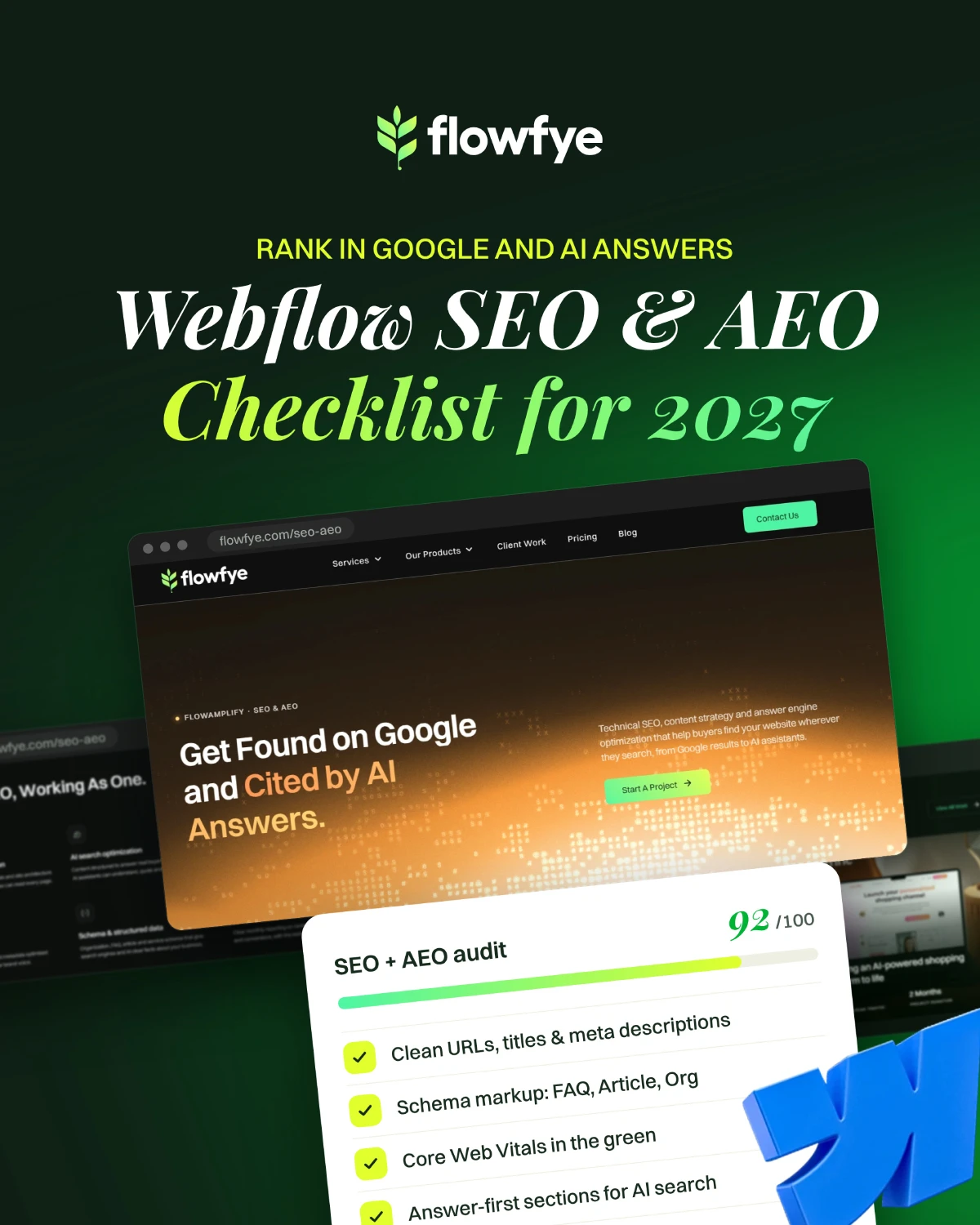
Webflow SEO & AEO Checklist for 2027

Man with glasses, beard, and mustache smiling, wearing a green shirt, with a white background.
by
Abdullah Un Noman
11 minutes read
Last update date:
November 24, 2026
Webflow SEO and AEO checklist for 2027
Quick Summery

A complete Webflow SEO checklist covers six areas: technical setup, on-page settings, CMS templates, answer engine optimization (AEO), launch and migration, and ongoing maintenance. Webflow handles a lot automatically, including sitemaps, SSL, and clean code, but you still need to set canonical tags, redirects, meta data, schema, and content structure yourself. Work through the checklist below before launch, then repeat the ongoing tasks every month.

SEO vs AEO in one line: SEO helps your pages rank in search results. AEO helps AI tools such as ChatGPT, Google's AI answers, Perplexity, and Claude understand your content and cite it in their answers. In 2027 you need both, and most of the work overlaps.

This checklist is written for marketers, founders, and Webflow designers. Each item says what to do and where to find it in Webflow, so you can tick it off as you go.

1. Technical setup checklist

Get the technical foundation right first. These settings decide whether search engines and AI crawlers can find and trust your pages. Most live in your site's Site settings.

  • Connect your custom domain and choose one default version. Pick either www or non-www, set it as the default domain, and make sure the other version redirects to it.
  • Confirm SSL is on. Webflow hosting serves sites over HTTPS. Check that every page loads with the padlock and no mixed-content warnings.
  • Set a global canonical tag. Add your base URL, such as https://www.yourdomain.com, as the global canonical in your SEO settings. Webflow then adds a self-referencing canonical to every page. Webflow's guidance notes the canonical must include www if your default domain does.
  • Turn on the automatic sitemap. Webflow can generate your sitemap and update it every time you publish. It lives at yourdomain.com/sitemap.xml and includes all live, indexable pages, per Webflow University.
  • Review robots.txt. Check yourdomain.com/robots.txt for rules that block important pages, or AI crawlers you want to reach your content.
  • Stop the webflow.io staging domain from being indexed. Disable indexing of your Webflow subdomain so search engines don't treat it as a duplicate of your live site.
  • Set the page language. Add the correct language code to your site so search engines and screen readers know which language your content is in.
  • Check page speed. Compress images, use modern formats such as WebP or AVIF, limit heavy animations and third-party scripts, and test key pages with Google's PageSpeed Insights.
  • Add a custom 404 page. Help visitors find their way back, and review 404 visits regularly to spot broken links.

2. On-page checklist

On-page settings tell search engines and AI tools what each page is about. Set them in each page's Page settings, and check them before every publish.

  • Write a unique title tag. Keep it under about 60 characters, put the main keyword near the start, and make it read naturally.
  • Write a unique meta description. Aim for 140 to 160 characters that summarise the page and give a reason to click.
  • Use exactly one H1. Every page should have one H1 that states the topic. Use H2s and H3s in order beneath it, set in each element's settings rather than by styling plain text.
  • Keep slugs short and descriptive. Use lowercase words separated by hyphens, such as /webflow-seo-checklist. Avoid dates in slugs for content you plan to update.
  • Add alt text to every meaningful image. Describe what the image shows in plain words. Mark purely decorative images as decorative.
  • Link internally. Link each page to related pages with descriptive anchor text, and make sure no important page is more than three clicks from the homepage.
  • Set Open Graph fields. Add an Open Graph title, description, and image so links look right when shared on LinkedIn, X, and messaging apps.
  • Answer the main question early. Put a clear, direct answer in the first paragraph, then expand. This helps both search snippets and AI answers.
  • Use Webflow's SEO audit. Webflow's AI-powered audits check pages for missing alt text, meta data, and schema markup, so run one before you publish.

3. CMS checklist

Webflow's CMS powers blogs, case studies, and resource libraries, and one template controls hundreds of pages. Set the SEO up once in each Collection template and every item benefits.

  • Add SEO fields to each Collection. Create fields for meta title, meta description, Open Graph image, and image alt text, so editors can fill them in for every item.
  • Bind template SEO settings to those fields. In the Collection template's page settings, connect the title, description, and Open Graph fields to the CMS fields instead of leaving them blank or fixed.
  • Use clear Collection slugs. Choose short Collection paths such as /blog or /case-studies, as they appear in every item's URL.
  • Add structured data to templates. Use an Embed element in the template to output schema, such as Article for blog posts, filled in from CMS fields like title, author, and date.
  • Show author and date. Display an author name, bio, and published or updated date on articles. These help readers, search engines, and AI tools judge trust.
  • Link related items. Use reference fields to show related posts or case studies on each page, which strengthens internal linking automatically.
  • Keep thin items out of the index. Don't publish placeholder or near-empty CMS items. If you need them live, keep them out of the sitemap and search results.
  • Plan pagination and filters. Make sure paginated lists and filtered views don't create many near-duplicate URLs that compete with each other.

4. AEO checklist

AEO builds on good SEO. AI answer engines favour pages that are clear, well structured, trustworthy, and easy for machines to read. These steps make your Webflow site easier for them to understand and cite.

  • Lead every page with a direct answer. Start key pages and articles with a one- or two-sentence answer to the main question, then add detail.
  • Use question-based headings. Phrase H2s as the questions buyers ask, such as "How much does a Webflow website cost?", and answer each one in the first sentence beneath it.
  • Add FAQ sections. Answer common questions in short, self-contained paragraphs, and mark them up with FAQ schema.
  • Add schema markup across the site. Add Organization schema sitewide, and Article, FAQ, Product, or Service schema where they fit. Webflow AI can generate schema markup and recommend the right type. Webflow's own technical AEO guide suggests starting with your top 20 pages and validating them in Google's Rich Results Test.
  • Upload an llms.txt file. Webflow lets you upload llms.txt in your SEO settings and serves it at your domain's root without it being indexed. Webflow itself describes llms.txt as an emerging standard and a signal rather than a guarantee, so treat it as a low-effort extra, not a priority.
  • Allow the AI crawlers you want. Check robots.txt to make sure you aren't blocking the crawlers of AI tools you want to be cited by.
  • Be specific and consistent. Use the same company name, product names, and descriptions across your site and profiles, and include concrete facts: numbers, dates, locations, and named examples.
  • Show expertise. Add author bios, credentials, case studies, and original data. AI tools look for signs that content comes from real experience.
  • Earn mentions elsewhere. Reviews, directory listings, guest articles, and press coverage help AI tools see your brand as an authority.

5. Migration and launch checklist

Launch is where SEO damage often happens, especially when you move from WordPress or another platform. Work through these steps before and right after you switch your domain.

Before launch:

  • Crawl the old site. Export every live URL, including blog posts, landing pages, and PDFs, with a crawler or your current sitemap.
  • Build a redirect map. Match every old URL to its new Webflow URL in a spreadsheet. Redirect to the closest equivalent page, not the homepage.
  • Add 301 redirects in Webflow. Enter them in your site settings, one by one or in bulk with a CSV file, per Webflow's guidance. Have them in place before you switch the domain.
  • Carry over metadata. Keep the titles, descriptions, and headings that already rank, unless you have a reason to improve them.
  • Test the staging site. Check every template, form, link, and page speed on the webflow.io staging domain, and confirm it is not being indexed.

After launch:

  • Verify the site in Google Search Console and Bing Webmaster Tools. Submit your sitemap in both.
  • Test your redirects. Spot-check a sample of old URLs, especially your highest-traffic pages, to confirm each one lands on the right page.
  • Check analytics. Confirm tracking works on every page type and that conversions are recorded.
  • Watch for errors. Review Search Console for crawl errors, 404s, and indexing problems every few days for the first month.

6. Ongoing checklist

SEO and AEO are never finished. Use this schedule to keep your Webflow site healthy after launch.

How oftenTask
Every publishCheck the title, meta description, H1, alt text, and Open Graph image on new or changed pages
MonthlyReview Search Console for errors, falling pages, and new keyword opportunities
MonthlyRun Webflow's SEO and AEO audit and fix missing meta data, alt text, or schema
MonthlyTest how AI tools answer your key questions and whether they mention your brand
QuarterlyUpdate your top articles with new facts, dates, and examples
QuarterlyReview internal links and fix broken links and redirect chains
QuarterlyTest page speed on your most important templates
YearlyReview your site structure, schema coverage, and robots.txt and llms.txt files

Small, regular fixes beat a big clean-up once a year. Put these tasks in your team's calendar so they actually happen.

Common Webflow SEO mistakes to avoid

These are common issues on Webflow sites, and every one is quick to fix once you know where to look.

MistakeWhy it hurtsThe fix
The webflow.io staging domain is indexedSearch engines see two copies of your siteDisable subdomain indexing in your SEO settings
No global canonical tagDuplicate URLs compete with each otherSet your base URL as the global canonical
CMS templates with blank SEO fieldsHundreds of pages share the same title or descriptionBind template titles and descriptions to CMS fields
Several H1s, or noneSearch engines can't tell the main topicUse one H1 per page, set in the element settings
Missing redirects after a migrationOld rankings and backlinks are lostBuild a redirect map and add 301s before launch
Heavy images and animationsSlow pages lose visitors and rankingsCompress images and limit heavy scripts
Robots.txt blocking AI crawlers by accidentAI tools can't read or cite your contentReview robots.txt and allow the crawlers you want
No schema markupSearch and AI tools miss key contextAdd Organization, Article, and FAQ schema

Final thoughts

Webflow gives you strong SEO foundations out of the box, but rankings and AI citations come from how you use them. Set up the technical basics once, build SEO into every CMS template, write pages that answer questions directly, and keep a regular review rhythm. Work through this checklist and your Webflow site will be ready for both search engines and answer engines in 2027.

Want a Webflow SEO and AEO audit?

Flowfye builds and optimizes Webflow websites for search and AI answers, from technical setup and schema to content structure and migrations. Book a free 30-minute call with us. Share your site, and we'll walk through the biggest SEO and AEO gaps and what to fix first.

Book a meeting with Flowfye

FAQ

Is Webflow good for SEO?

Yes. Webflow produces clean code, hosts sites over HTTPS, generates sitemaps automatically, and gives you control over meta data, canonical tags, redirects, and schema. Results still depend on how the site is set up and on the quality of its content.

What is the difference between SEO and AEO?

SEO helps your pages rank in search engine results. AEO, or answer engine optimization, helps AI tools such as ChatGPT, Perplexity, and Google's AI answers understand your content and cite it. Clear structure, schema, and direct answers help with both.

Does Webflow support llms.txt?

Yes. You can upload an llms.txt file in your site's SEO settings, and Webflow serves it at your domain's root without indexing it. It is an emerging standard, so treat it as a helpful signal rather than a ranking factor.

How do I add schema markup in Webflow?

You can generate schema with Webflow AI, or add it yourself with custom code in page settings or an Embed element. For CMS pages, put the schema in the Collection template and fill it with CMS fields so every item gets its own markup.

How do I set up 301 redirects in Webflow?

Add them in your site settings, one at a time or in bulk with a CSV file. Set them up before you switch your domain during a migration.

How often should I review my Webflow site's SEO?

Check new pages every time you publish, review Search Console and run Webflow's audit monthly, and refresh key content and internal links every quarter.

Website Growth Ideas Straight to Your Inbox
Thank you! Your submission has been received!
Oops! Something went wrong while submitting the form.

By entering your email, you are agreeing to our privacy policy.

Portrait of a man with short dark hair, a trimmed beard, and mustache, wearing a blue button-up shirt, smiling slightly.
Portrait of a man with short dark hair, glasses, and a beard wearing a green sweater and smiling slightly.
A young man with short curly hair and a mustache stands confidently with arms crossed in a modern office setting, wearing a black blazer over a white shirt; blurred background shows plants, windows, and wall text reading 'BUILD SOLVE GROW'.
Looking for a Website Growth Partner?

We help SaaS, Fintech, AI, and B2B companies turn complex products into clear, credible, scalable websites.

AI Summary
Share this
November 24, 2026

Webflow SEO & AEO Checklist for 2027

Webflow SEO and AEO checklist for 2027

SEO vs AEO in one line: SEO helps your pages rank in search results. AEO helps AI tools such as ChatGPT, Google's AI answers, Perplexity, and Claude understand your content and cite it in their answers. In 2027 you need both, and most of the work overlaps.

This checklist is written for marketers, founders, and Webflow designers. Each item says what to do and where to find it in Webflow, so you can tick it off as you go.

1. Technical setup checklist

Get the technical foundation right first. These settings decide whether search engines and AI crawlers can find and trust your pages. Most live in your site's Site settings.

  • Connect your custom domain and choose one default version. Pick either www or non-www, set it as the default domain, and make sure the other version redirects to it.
  • Confirm SSL is on. Webflow hosting serves sites over HTTPS. Check that every page loads with the padlock and no mixed-content warnings.
  • Set a global canonical tag. Add your base URL, such as https://www.yourdomain.com, as the global canonical in your SEO settings. Webflow then adds a self-referencing canonical to every page. Webflow's guidance notes the canonical must include www if your default domain does.
  • Turn on the automatic sitemap. Webflow can generate your sitemap and update it every time you publish. It lives at yourdomain.com/sitemap.xml and includes all live, indexable pages, per Webflow University.
  • Review robots.txt. Check yourdomain.com/robots.txt for rules that block important pages, or AI crawlers you want to reach your content.
  • Stop the webflow.io staging domain from being indexed. Disable indexing of your Webflow subdomain so search engines don't treat it as a duplicate of your live site.
  • Set the page language. Add the correct language code to your site so search engines and screen readers know which language your content is in.
  • Check page speed. Compress images, use modern formats such as WebP or AVIF, limit heavy animations and third-party scripts, and test key pages with Google's PageSpeed Insights.
  • Add a custom 404 page. Help visitors find their way back, and review 404 visits regularly to spot broken links.

2. On-page checklist

On-page settings tell search engines and AI tools what each page is about. Set them in each page's Page settings, and check them before every publish.

  • Write a unique title tag. Keep it under about 60 characters, put the main keyword near the start, and make it read naturally.
  • Write a unique meta description. Aim for 140 to 160 characters that summarise the page and give a reason to click.
  • Use exactly one H1. Every page should have one H1 that states the topic. Use H2s and H3s in order beneath it, set in each element's settings rather than by styling plain text.
  • Keep slugs short and descriptive. Use lowercase words separated by hyphens, such as /webflow-seo-checklist. Avoid dates in slugs for content you plan to update.
  • Add alt text to every meaningful image. Describe what the image shows in plain words. Mark purely decorative images as decorative.
  • Link internally. Link each page to related pages with descriptive anchor text, and make sure no important page is more than three clicks from the homepage.
  • Set Open Graph fields. Add an Open Graph title, description, and image so links look right when shared on LinkedIn, X, and messaging apps.
  • Answer the main question early. Put a clear, direct answer in the first paragraph, then expand. This helps both search snippets and AI answers.
  • Use Webflow's SEO audit. Webflow's AI-powered audits check pages for missing alt text, meta data, and schema markup, so run one before you publish.

3. CMS checklist

Webflow's CMS powers blogs, case studies, and resource libraries, and one template controls hundreds of pages. Set the SEO up once in each Collection template and every item benefits.

  • Add SEO fields to each Collection. Create fields for meta title, meta description, Open Graph image, and image alt text, so editors can fill them in for every item.
  • Bind template SEO settings to those fields. In the Collection template's page settings, connect the title, description, and Open Graph fields to the CMS fields instead of leaving them blank or fixed.
  • Use clear Collection slugs. Choose short Collection paths such as /blog or /case-studies, as they appear in every item's URL.
  • Add structured data to templates. Use an Embed element in the template to output schema, such as Article for blog posts, filled in from CMS fields like title, author, and date.
  • Show author and date. Display an author name, bio, and published or updated date on articles. These help readers, search engines, and AI tools judge trust.
  • Link related items. Use reference fields to show related posts or case studies on each page, which strengthens internal linking automatically.
  • Keep thin items out of the index. Don't publish placeholder or near-empty CMS items. If you need them live, keep them out of the sitemap and search results.
  • Plan pagination and filters. Make sure paginated lists and filtered views don't create many near-duplicate URLs that compete with each other.

4. AEO checklist

AEO builds on good SEO. AI answer engines favour pages that are clear, well structured, trustworthy, and easy for machines to read. These steps make your Webflow site easier for them to understand and cite.

  • Lead every page with a direct answer. Start key pages and articles with a one- or two-sentence answer to the main question, then add detail.
  • Use question-based headings. Phrase H2s as the questions buyers ask, such as "How much does a Webflow website cost?", and answer each one in the first sentence beneath it.
  • Add FAQ sections. Answer common questions in short, self-contained paragraphs, and mark them up with FAQ schema.
  • Add schema markup across the site. Add Organization schema sitewide, and Article, FAQ, Product, or Service schema where they fit. Webflow AI can generate schema markup and recommend the right type. Webflow's own technical AEO guide suggests starting with your top 20 pages and validating them in Google's Rich Results Test.
  • Upload an llms.txt file. Webflow lets you upload llms.txt in your SEO settings and serves it at your domain's root without it being indexed. Webflow itself describes llms.txt as an emerging standard and a signal rather than a guarantee, so treat it as a low-effort extra, not a priority.
  • Allow the AI crawlers you want. Check robots.txt to make sure you aren't blocking the crawlers of AI tools you want to be cited by.
  • Be specific and consistent. Use the same company name, product names, and descriptions across your site and profiles, and include concrete facts: numbers, dates, locations, and named examples.
  • Show expertise. Add author bios, credentials, case studies, and original data. AI tools look for signs that content comes from real experience.
  • Earn mentions elsewhere. Reviews, directory listings, guest articles, and press coverage help AI tools see your brand as an authority.

5. Migration and launch checklist

Launch is where SEO damage often happens, especially when you move from WordPress or another platform. Work through these steps before and right after you switch your domain.

Before launch:

  • Crawl the old site. Export every live URL, including blog posts, landing pages, and PDFs, with a crawler or your current sitemap.
  • Build a redirect map. Match every old URL to its new Webflow URL in a spreadsheet. Redirect to the closest equivalent page, not the homepage.
  • Add 301 redirects in Webflow. Enter them in your site settings, one by one or in bulk with a CSV file, per Webflow's guidance. Have them in place before you switch the domain.
  • Carry over metadata. Keep the titles, descriptions, and headings that already rank, unless you have a reason to improve them.
  • Test the staging site. Check every template, form, link, and page speed on the webflow.io staging domain, and confirm it is not being indexed.

After launch:

  • Verify the site in Google Search Console and Bing Webmaster Tools. Submit your sitemap in both.
  • Test your redirects. Spot-check a sample of old URLs, especially your highest-traffic pages, to confirm each one lands on the right page.
  • Check analytics. Confirm tracking works on every page type and that conversions are recorded.
  • Watch for errors. Review Search Console for crawl errors, 404s, and indexing problems every few days for the first month.

6. Ongoing checklist

SEO and AEO are never finished. Use this schedule to keep your Webflow site healthy after launch.

How oftenTask
Every publishCheck the title, meta description, H1, alt text, and Open Graph image on new or changed pages
MonthlyReview Search Console for errors, falling pages, and new keyword opportunities
MonthlyRun Webflow's SEO and AEO audit and fix missing meta data, alt text, or schema
MonthlyTest how AI tools answer your key questions and whether they mention your brand
QuarterlyUpdate your top articles with new facts, dates, and examples
QuarterlyReview internal links and fix broken links and redirect chains
QuarterlyTest page speed on your most important templates
YearlyReview your site structure, schema coverage, and robots.txt and llms.txt files

Small, regular fixes beat a big clean-up once a year. Put these tasks in your team's calendar so they actually happen.

Common Webflow SEO mistakes to avoid

These are common issues on Webflow sites, and every one is quick to fix once you know where to look.

MistakeWhy it hurtsThe fix
The webflow.io staging domain is indexedSearch engines see two copies of your siteDisable subdomain indexing in your SEO settings
No global canonical tagDuplicate URLs compete with each otherSet your base URL as the global canonical
CMS templates with blank SEO fieldsHundreds of pages share the same title or descriptionBind template titles and descriptions to CMS fields
Several H1s, or noneSearch engines can't tell the main topicUse one H1 per page, set in the element settings
Missing redirects after a migrationOld rankings and backlinks are lostBuild a redirect map and add 301s before launch
Heavy images and animationsSlow pages lose visitors and rankingsCompress images and limit heavy scripts
Robots.txt blocking AI crawlers by accidentAI tools can't read or cite your contentReview robots.txt and allow the crawlers you want
No schema markupSearch and AI tools miss key contextAdd Organization, Article, and FAQ schema

Final thoughts

Webflow gives you strong SEO foundations out of the box, but rankings and AI citations come from how you use them. Set up the technical basics once, build SEO into every CMS template, write pages that answer questions directly, and keep a regular review rhythm. Work through this checklist and your Webflow site will be ready for both search engines and answer engines in 2027.

Want a Webflow SEO and AEO audit?

Flowfye builds and optimizes Webflow websites for search and AI answers, from technical setup and schema to content structure and migrations. Book a free 30-minute call with us. Share your site, and we'll walk through the biggest SEO and AEO gaps and what to fix first.

Book a meeting with Flowfye

Ready to Build
Together?

THANK YOU FOR YOUR VISIT!
THANK YOU FOR YOUR VISIT! ©
THANK YOU FOR YOUR VISIT!
THANK YOU FOR YOUR VISIT! ©
THANK YOU FOR YOUR VISIT!
Smiling face with eyes closed and a warm, content expression.
THANK YOU FOR YOUR VISIT! ©
THANK YOU FOR YOUR VISIT!
THANK YOU FOR YOUR VISIT! ©
THANK YOU FOR YOUR VISIT!
THANK YOU FOR YOUR VISIT! ©
THANK YOU FOR YOUR VISIT!
Smiling face with eyes closed and a warm, content expression.
THANK YOU FOR YOUR VISIT! ©
THANK YOU FOR YOUR VISIT!
THANK YOU FOR YOUR VISIT! ©
THANK YOU FOR YOUR VISIT!
THANK YOU FOR YOUR VISIT! ©
THANK YOU FOR YOUR VISIT!
Smiling face with eyes closed and a warm, content expression.
THANK YOU FOR YOUR VISIT! ©
THANK YOU FOR YOUR VISIT!
THANK YOU FOR YOUR VISIT! ©
THANK YOU FOR YOUR VISIT!
THANK YOU FOR YOUR VISIT! ©
THANK YOU FOR YOUR VISIT!
Smiling face with eyes closed and a warm, content expression.
THANK YOU FOR YOUR VISIT! ©
Webflow Certified Partner