Introduction: Webflow Analytics in 2026
In 2026, building a Webflow website or blog without analytics means operating blindly. With AI-driven search results, engagement-based SEO, and performance-focused content strategies, google analytics webflow tracking is no longer optional.
This guide explains how to add Google Analytics to Webflow using Google Analytics 4, so you can track Webflow blog traffic, measure content engagement, and understand how users interact with your site.
Whether you manage a CMS blog, landing pages, or a full website, this webflow google analytics setup works universally.
How Google Analytics 4 Works with Webflow in 2026
Google Analytics 4 uses an event-based data model, making it ideal for modern Webflow sites built with CMS, animations, and dynamic content.
With proper ga4 webflow integration, you can track:
- Webflow blog page views and sessions
- User engagement time per article
- Scroll behavior on long-form content
- Traffic sources driving blog visitors
- Content performance for SEO optimization
This makes google analytics 4 especially powerful for Webflow blogs and content-led growth strategies.
Requirements Before Adding Google Analytics to Webflow
Before you begin, ensure you have:
- A Google account with Analytics access
- Admin or editor access to your Webflow project
- Permission to create or manage a GA4 property
No plugins, no third-party tools, and no coding knowledge are required for basic google analytics webflow setup.
Step 1: Create a Google Analytics 4 Property
Log in to Google Analytics and create a new GA4 property.
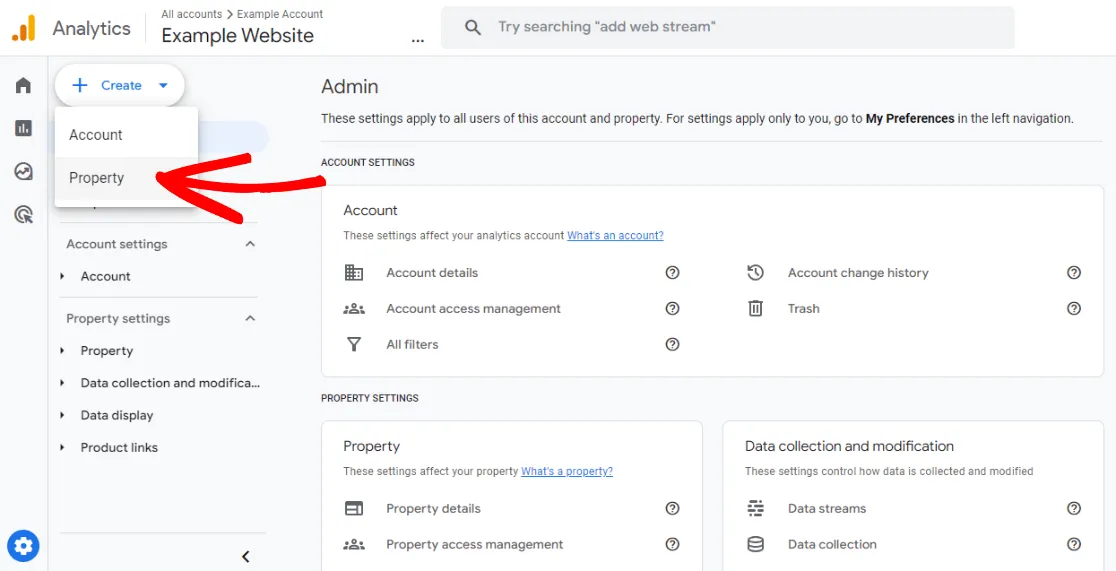
During setup:
- Select Web as your platform
- Enter your Webflow site URL
- Choose your reporting time zone
- Complete property creation
After setup, GA4 will generate a Measurement ID, which is essential to connect webflow google analytics correctly.
Step 2: Get Your GA4 Measurement ID
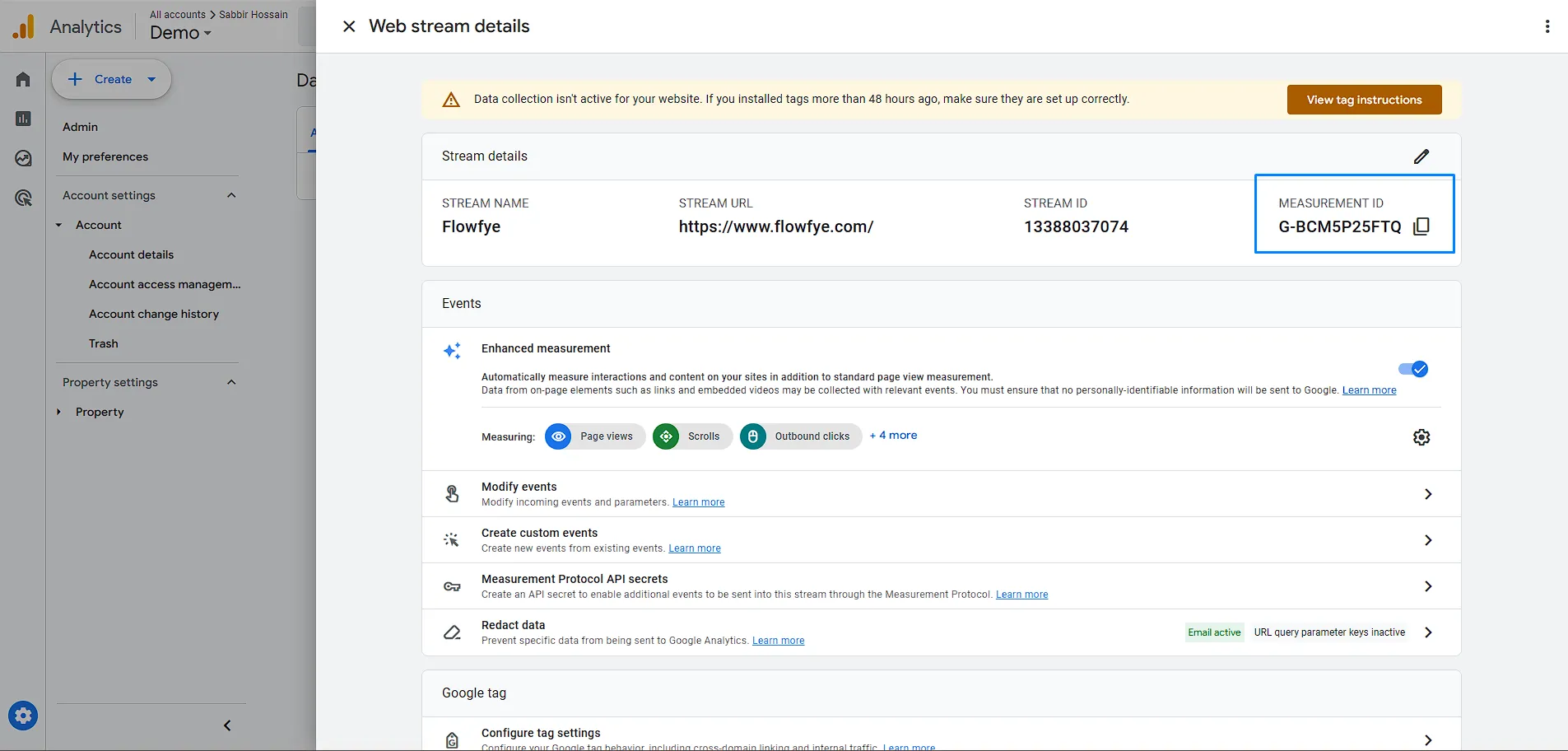
Inside the GA4 dashboard:
- Go to Admin
- Open Data Streams
- Select your Web data stream
You will see a Measurement ID formatted as G-XXXXXXXXXX.
This ID is required to add Google Analytics to Webflow.
Step 3: Add Google Analytics to Webflow (Native Integration)
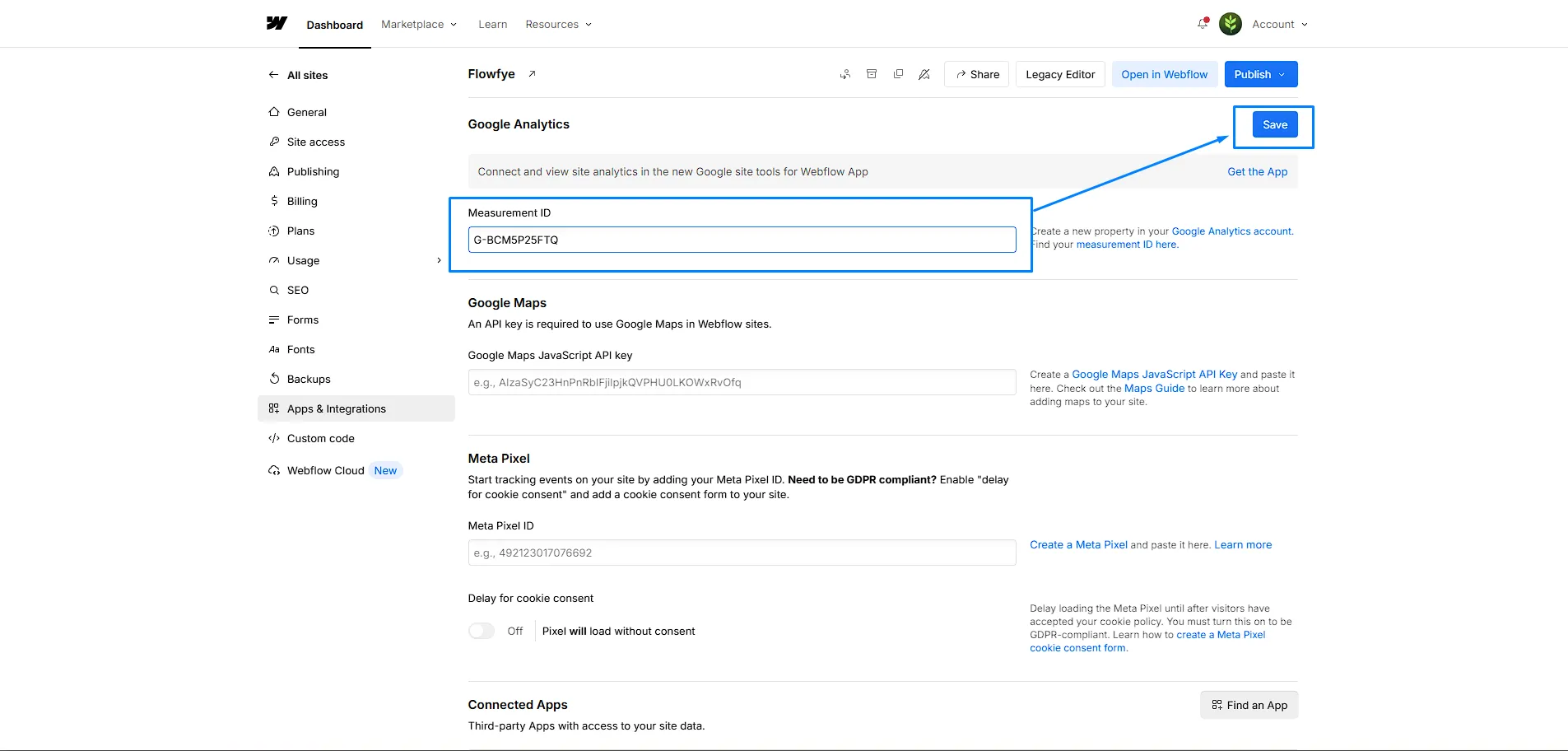
Now connect GA4 with Webflow.
In your Webflow dashboard:
- Open Project Settings
- Go to the Integrations tab
- Paste the GA4 Measurement ID into the Google Analytics field
- Save the changes
This is the recommended method for google analytics webflow integration in 2026 and avoids tracking conflicts.
Step 4: Publish Your Webflow Website or Blog
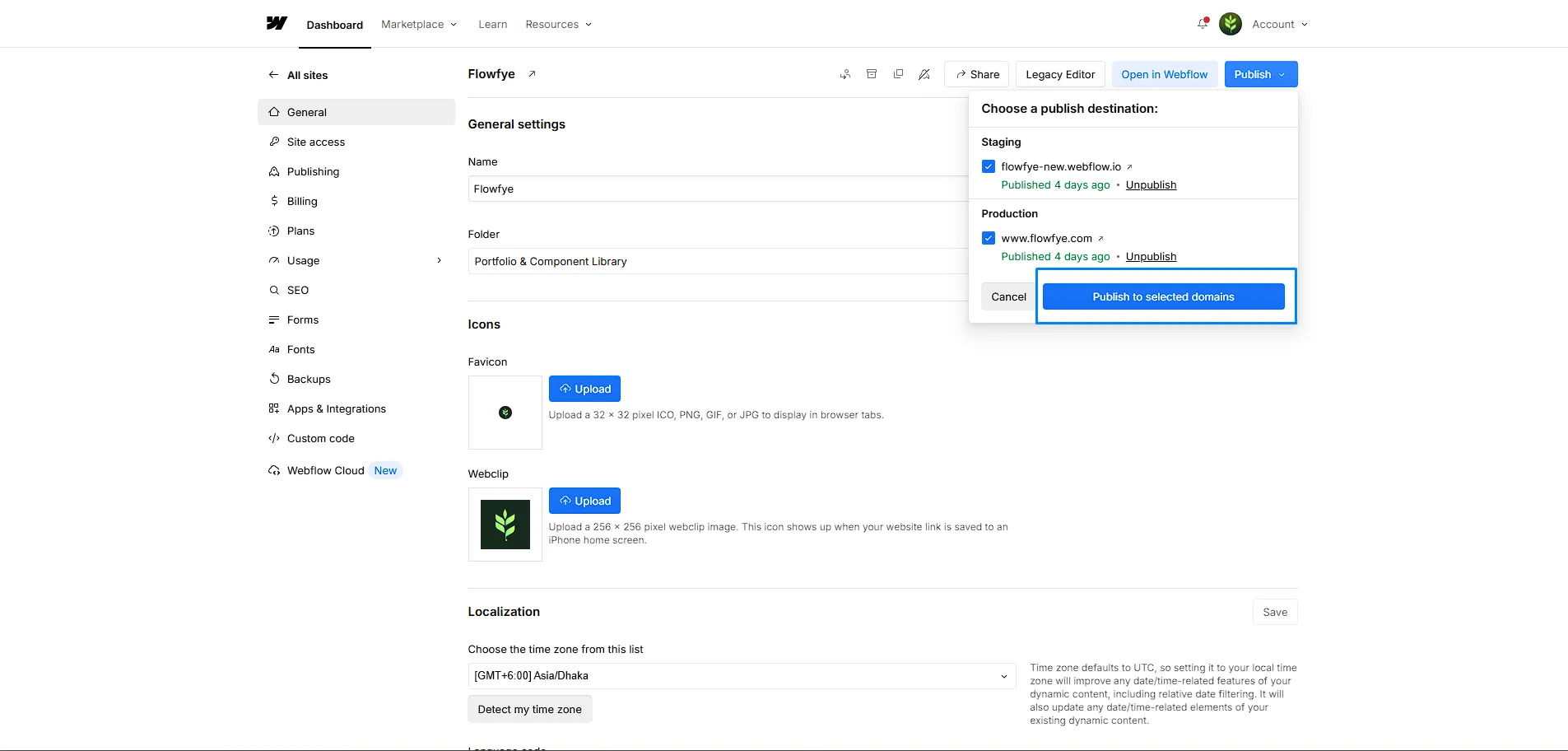
Publishing is mandatory.
After adding the Measurement ID:
- Publish your site to the live domain
GA4 will only track data on published pages, including Webflow CMS blog posts. This step activates ga4 webflow tracking.
Step 5: Verify Webflow Google Analytics Tracking
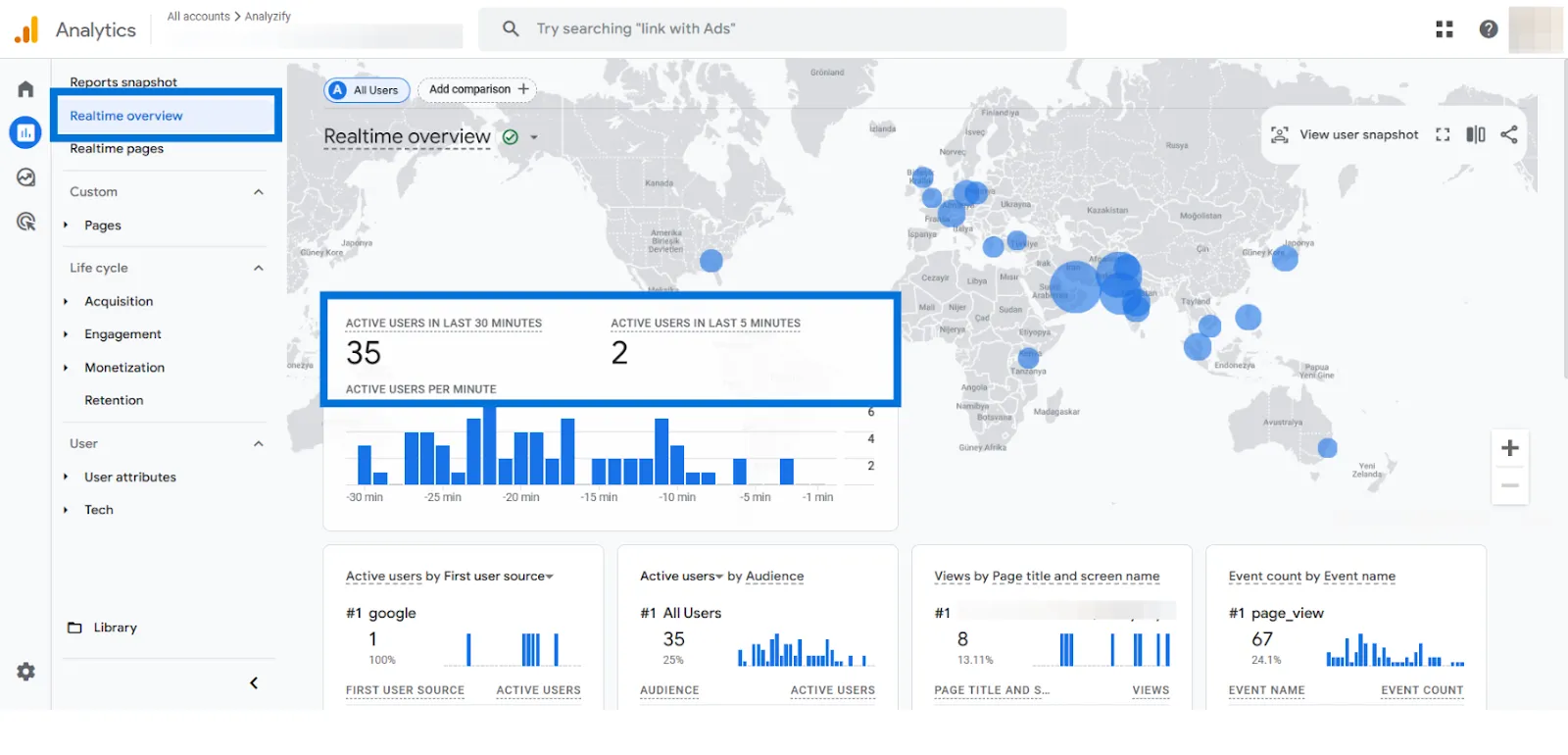
To confirm everything is working:
- Open GA4 Realtime reports
- Visit your Webflow site in a new browser window
- Navigate between blog posts and pages
If you see active users, your google analytics 4 setup is complete.
Common GA4 Webflow Mistakes to Avoid in 2026
Even in 2026, many Webflow websites still collect inaccurate or incomplete analytics data due to small setup mistakes. These errors often lead to missing traffic data, inflated metrics, or broken tracking, which directly affects SEO and performance decisions.
Avoid these common errors when setting up webflow google analytics:
- Using Universal Analytics instead of GA4
- Adding GA4 scripts manually alongside Webflow integration
- Forgetting to republish after setup
- Expecting historical data immediately
A clean ga4 webflow setup always uses one Measurement ID and a live site.
What GA4 Automatically Tracks on Webflow Blogs
Once connected, google analytics webflow automatically tracks:
- Blog page views and sessions
- Scroll depth and engagement time
- Traffic sources such as organic search and social
- Device, browser, and location data
- CMS content performance
This data helps track Webflow blog performance, content quality, and SEO impact without extra configuration.
Why Webflow Blog Analytics Matter More in 2026
In 2026, Webflow blogs are no longer judged only by keywords or backlinks. Search engines and AI-driven discovery systems now prioritize how users actually interact with content. Metrics like engagement time, scroll depth, and return visits directly influence visibility, rankings, and content performance. Without proper webflow google analytics setup, blog decisions are based on assumptions instead of real user behavior.
Search engines now evaluate content using engagement signals. Without webflow google analytics, you cannot accurately measure:
- Which blog posts drive the most traffic
- How long users read your content
- Which pages contribute to conversions
- Which content needs updating or optimization
Using google analytics 4 allows Webflow site owners to make data-driven content decisions instead of guessing.
How Flowfye Helps You Go Beyond Basic GA4 Setup
Setting up GA4 is only the starting point. In 2026, most Webflow blogs fail not because google analytics webflow tracking is missing, but because the data collected is never connected to design, development, or SEO decisions.
At Flowfye, we use Google Analytics 4 insights to improve how Webflow blogs are built, optimized, and scaled. Our approach connects analytics with real execution across your website.
We support Webflow teams through:
- Webflow Development
Structuring CMS, blog layouts, and page architecture so GA4 data reflects real user behavior, not tracking noise. - UI/UX Design
Improving readability, scroll depth, and engagement time using GA4 insights from actual blog interactions. - Theme Customization
Customizing Webflow themes to support better content flow, CTA placement, and analytics-friendly layouts. - Platform Migration
Migrating websites to Webflow while preserving GA4 tracking, SEO data, and historical performance benchmarks. - Maintenance & SEO
Ongoing blog optimization using google analytics 4 data to identify underperforming content, update pages, and improve organic visibility.
If your goal is to grow traffic, leads, or revenue from content, Flowfye bridges the gap between google analytics webflow data and measurable business outcomes.
Final Thoughts
A correct add google analytics to webflow setup ensures accurate tracking in 2026 and beyond. With GA4 in place, you can measure Webflow blog engagement, improve SEO performance, and understand user behavior with clarity.
Once analytics is installed, the real advantage comes from interpreting and acting on the data.

